Windows sees it as real
A software-defined monitor in Display Settings, alongside your physical panels. Set its resolution, refresh rate, and DPI like any monitor.
Remio installs a virtual display driver on your Windows PC — a software-defined monitor Windows treats as real, right there in Display Settings. The iPad shows that display wirelessly, up to 5K at 120 Hz, with touch and Apple Pencil. Free, no account. A real Duet Display and spacedesk alternative.
Remio installs a virtual display driver on the Windows host. A virtual display is a software-defined monitor the OS treats as real — drag windows onto it, set its resolution and refresh rate, even change its DPI. It shows up alongside your physical displays in Windows Display Settings, and the iPad shows that display wirelessly. Your PC's physical monitors stay untouched.
Resolutions from 1080p to 5K, at 60 or 120 Hz.
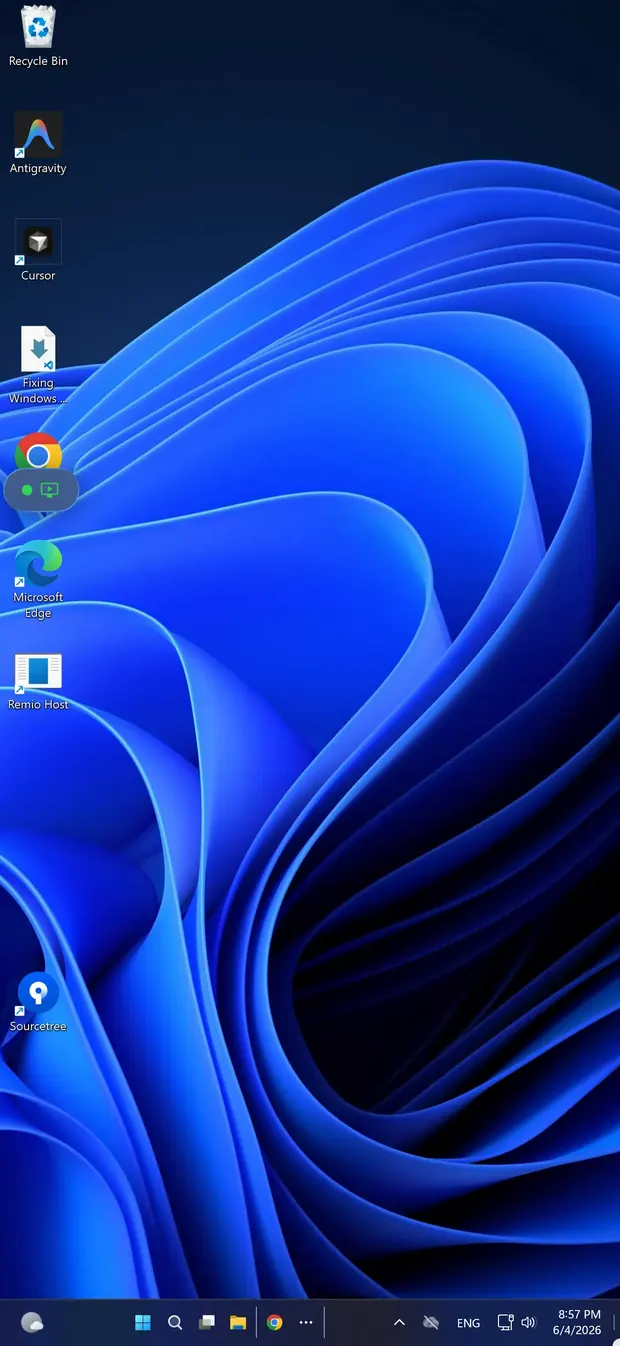

A software-defined monitor in Display Settings, alongside your physical panels. Set its resolution, refresh rate, and DPI like any monitor.
Pick 1080p, 1440p, 4K, or 5K at 60 or 120 Hz. The iPad shows it at full resolution and native DPI, crisp at 100% scale.
Stream just the new virtual canvas. Your existing desktop and monitors keep working exactly as before — nothing rearranges.
Peer-to-peer on the local network — about 8 ms of processing latency on a wired LAN, measured internally — the rest is your display's own 60 Hz refresh cadence. Plug the PC into Ethernet; the iPad stays wireless.
All three extend your desktop to an iPad. The difference is price, the account model, and whether the stream is end-to-end encrypted.
| Duet Display | spacedesk | Remio | |
|---|---|---|---|
| Price | Subscription | Free | Free — every feature |
| Account | Sign-in required | None | None — six-digit code |
| Encryption | — | — | End-to-end encrypted |
| Host platforms | Windows & Mac | Windows only | Windows & Mac |
| Connection | USB or Wi-Fi | Wi-Fi | Wireless, peer-to-peer |
Touch lands in Windows apps as pointer input — tap, two-finger scroll, and drag all work. The Apple Pencil forwards as pointer input to the host, and hardware keyboards pass through every key, modifier, and F-row. Mouse and iPad touches coexist with no mode switch.
The extended display isn't just visible — it's interactive.
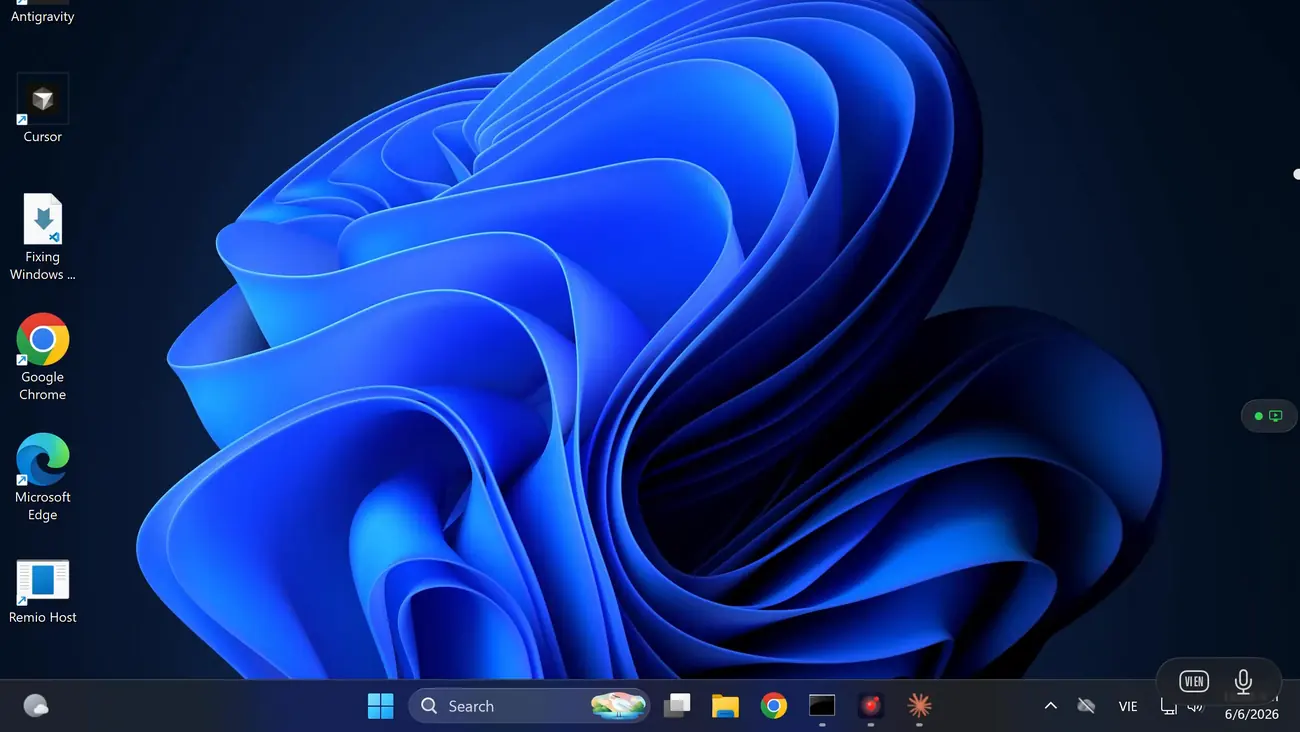
The iPad and PC connect peer-to-peer over your Wi-Fi, end-to-end encrypted — your screen never touches our servers, even the relay only sees ciphertext. Keys never leave your devices. Pairing uses a six-digit code you can rotate anytime — no email, no password, no sign-in.
Install the host, install the client, pair once, add a virtual display, and extend. Then arrange it in Windows Display Settings like any monitor.
Download the free Remio Host installer from remio.net/download and run it. It works on Windows 10 (build 19041 or later) and Windows 11, Home editions included. Power users can run winget install Remio.RemioHost instead.
Get the free Remio client from the App Store. It runs on any iPad with iPadOS 18 or later. No account, no sign-up — install it and open it.
The host shows a six-digit code. Enter it on the iPad, or scan the QR code on the host screen. The two devices remember each other, so this happens once.
In the Remio Host system tray menu, open Settings → Display → Virtual Display and click Add. Pick a resolution (1080p, 1440p, 4K, 5K) and refresh rate (60 Hz, 120 Hz). The display appears immediately, alongside your physical displays in Windows Display Settings.
Connect from the iPad and pick the virtual display in the client toolbar's Display switcher. Stream just that virtual canvas — the PC's physical monitors stay untouched. Drag windows onto the new display and arrange it in Windows Display Settings like any monitor.
Park whatever you keep glancing at on the iPad and reclaim your main screen.
Editor on the main screen, reference and API docs on the iPad. Stop tabbing between them.
Trading charts, monitoring, or analytics parked on the iPad while you work on the PC's main displays.
Keep a tutorial playing on the iPad while you follow along in Premiere, Blender, or Excel.
Banish chat and email to the iPad. Notifications stay off your main screen but in view.
Want to control the whole PC — for gaming or reaching a Home edition from anywhere — not just extend the desktop? See remote desktop on Windows 11 Home or cloud gaming.

Install Remio on your PC and iPad, pair with a six-digit code, add a virtual display, and extend. No subscription, no account.