Windows apps
Photoshop, QuickBooks Desktop, Visual Studio, or any Windows program — running on the PC, shown on the Chromebook.
A Chromebook can't run Photoshop or QuickBooks Desktop — your Mac, Windows, or Linux machine can. Remio streams the whole running desktop to a Play-enabled Chromebook through its native Android client, hardware-decoded. Free, no account, end-to-end encrypted.
A Chromebook is light, cheap, and lasts all day — but it can't run the heavy desktop software your work depends on. The fix isn't a faster Chromebook. It's reaching the machine that already runs it and putting that desktop on the Chromebook's screen.
ChromeOS runs Android apps in its Android container, and Remio's native Android client — the same one that ships on Android 12+ tablets — installs straight from Google Play. It's built with Jetpack Compose and decodes video frames with MediaCodec, so streams arrive hardware-decoded, not as slideshows. There's no ChromeOS-native app today; the Remio Host now runs on Linux, a Linux client is on the roadmap, and a ChromeOS build is not something we promise.
Same hardware-decode client as Android tablets — no web wrapper.
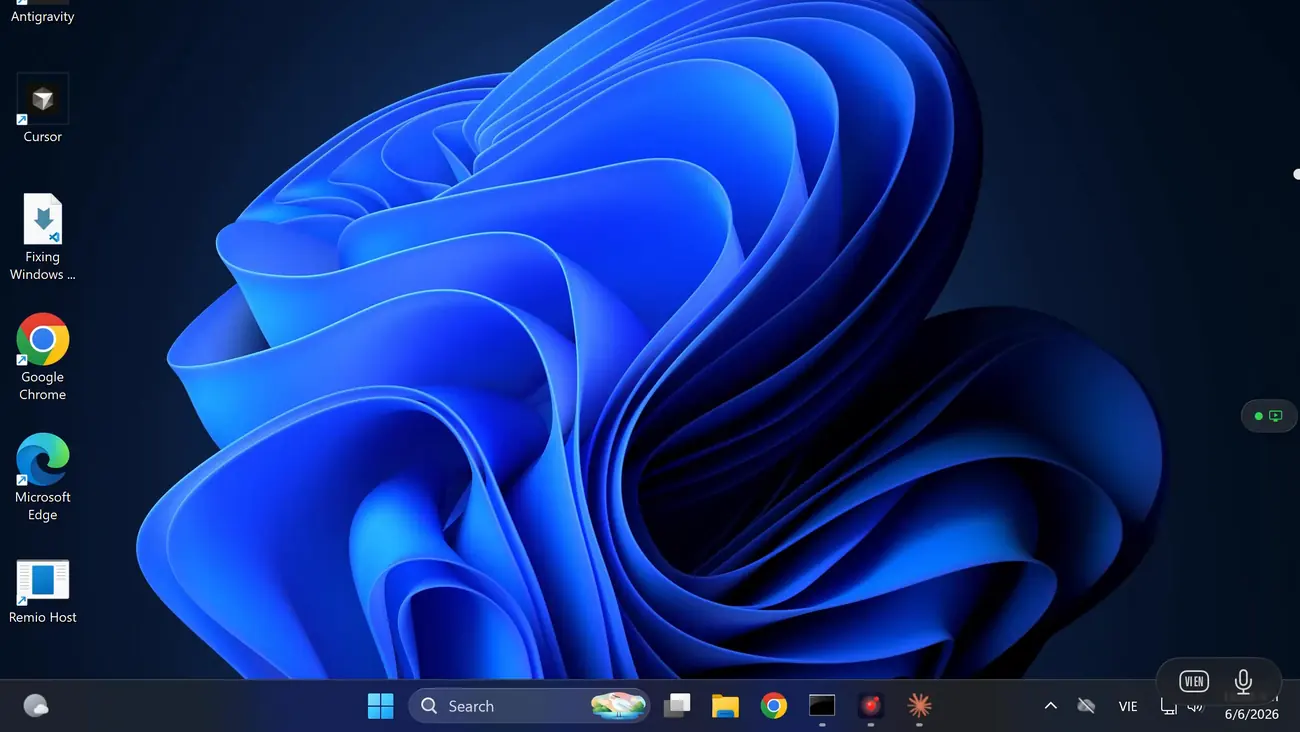
The desktop runs on the host. Only the picture and sound travel to the Chromebook — so anything your Mac, PC, or Linux machine runs, you run.
Photoshop, QuickBooks Desktop, Visual Studio, or any Windows program — running on the PC, shown on the Chromebook.
Final Cut, Xcode, Logic — the full macOS desktop reaches a Chromebook the same way, over the Android client.
Host audio streams to the Chromebook in sync with the picture — not just a silent screen.
Full keyboard and trackpad pass-through from the Chromebook — every key and modifier reaches the host.
Install the host, install from Google Play, pair with a PIN, connect. Every session is end-to-end encrypted — the server only ever sees ciphertext.
Put the free Remio host on your Mac (macOS 15+) or Windows PC (Windows 10 build 19041+ or Windows 11, Home included).
On the Chromebook, install the free Remio client from Google Play — works on Chromebooks that support Android apps.
The host shows a six-digit code you can rotate anytime. Enter it once; the devices remember each other.
Tap the host in the device list. The full desktop appears with audio and trackpad pass-through.
A cart of Chromebooks reaching a lab of Macs or PCs is a genuinely good fit — but only where Google Play is allowed.
School- and district-managed Chromebooks often ship with Google Play disabled by policy. On those devices Remio cannot be installed until an administrator allows Play apps — that is a Google Admin console decision, not a Remio setting. Where Play stays off, Chrome Remote Desktop is the tool that works, and we would rather say so than pretend otherwise. See our use cases and Remio vs Chrome Remote Desktop comparison for the full picture.
The first row is the one to take seriously: if the Chromebook can't get Play apps, Remio is not an option on it — and Chrome Remote Desktop is.
| Chrome Remote Desktop | Remio | |
|---|---|---|
| Runs on which Chromebooks | Every Chromebook — built into the browser, Play-disabled fleets included | Those with Google Play / Android app support — most consumer models sold since about 2019 |
| Frame rate | Around 30 fps | Hardware-decoded, full frame rate |
| Audio | Stays on the host | Streams to the Chromebook |
| Encryption | Google-account routed | End-to-end encrypted, no account |
For everything after the install — latency, fidelity, the account model — the deeper matrices are in Remio vs Chrome Remote Desktop and the Chrome Remote Desktop alternative guide. Helping a family member? See remote tech support for parents.

Install the host on your Mac, PC, or Linux machine, get Remio from Google Play, pair with a PIN. Free, no account, end-to-end encrypted.