iPad ↔ Mac · thirty-second pairing

Your iPad. Your Mac. One tap away.

Install Remio on your Mac, install Remio on your iPad, type a 4-digit PIN once — and your full Mac desktop is live on the iPad in under thirty seconds. No cloud round-trip, no account, no iCloud handshake. Sub-5 ms latency on the same Wi-Fi, native SwiftUI on both ends, every pixel and keystroke encrypted end-to-end.

Why this combo feels different

Why iPad to Mac feels different on Remio

Most remote desktop apps treat the iPad like a thin glass touchscreen and the Mac like a generic VNC target. Remio treats them as what they are — two of the most refined pieces of consumer hardware Apple ships, designed to talk to each other. The result is a session that feels like the iPad is the Mac, not a recording of it.

01
SwiftUI on both ends

Native SwiftUI client, native SwiftUI host — no Electron in the middle

The iPad client is written in Swift 6.2 with SwiftUI, the same toolkit Apple uses for the Settings app and Freeform. The Mac host is the same. Both apps render at the display’s native refresh rate, both apps respect Dynamic Type, Dark Mode, and the system accent color. There is no Chromium runtime, no JavaScript bridge, no V8 garbage collector stealing frame budget. Every millisecond is yours.

That matters because the iPad runs on the same M-series silicon as the Mac. Asking the iPad to render a remote desktop through a browser tab is asking an M-class chip to do the work of an emulator pretending to be a browser pretending to be a desktop. Asking it to render through native SwiftUI is asking it to do exactly what it was designed for.

02
Apple Pencil — full data, not just touches

Apple Pencil pass-through with pressure, tilt, and azimuth

When you draw on the iPad in a Remio session, the Pencil is not pretending to be a finger. Remio captures the full Pencil event — the pressure curve from 0.0 to 1.0, the tilt angle of the stylus relative to the screen, the azimuth of which way it’s rotated — and forwards every dimension to the Mac as a native tablet input event.

Procreate on the host Mac reads it as a Wacom-class tablet. Photoshop registers pressure-sensitive brush strokes. Affinity Designer’s nib-tilt features behave exactly as if a Cintiq were wired in. The data path is 1:1 — nothing is averaged, no pressure curve is “normalized,” nothing is dropped to save bandwidth.

03
Trackpad — inertia preserved

Magic Keyboard trackpad with inertial scrolling and momentum

Two-finger scroll on the iPad’s Magic Keyboard trackpad reaches the Mac with its velocity curve intact — flick and the page coasts, palm and it stops. Pinch-to-zoom in Maps on the Mac responds to iPad pinch. Three-finger swipe between Mission Control spaces works. The trackpad gestures forward as native Mac multi-touch events, not as crude mouse-wheel ticks.

04
Audio back to the iPad

System audio routes back — music, calls, alerts, in sync

Whatever the Mac is playing — a YouTube tab, a Logic Pro session, an incoming Zoom call — the audio captures from the Mac side and streams back to the iPad in lockstep with the video. Headphones in the iPad? Audio routes to AirPods. iPad speakers? Same thing. Lip-sync is maintained at a frame level so video calls feel natural, not delayed.

05
Clipboard, both ways

Copy on Mac, paste on iPad — and the reverse

Clipboard sync runs over the same encrypted data channel as input events. Copy a paragraph from a Mac browser, switch to the iPad, paste into a note. Copy a screenshot from the iPad camera roll, paste it into a Slack thread on the Mac. Text, images, and rich content all transfer in both directions without going through iCloud or a third-party clipboard manager.

The thirty-second setup

30 seconds from install to streaming

No setup wizard. No firewall rules. No router configuration. Open two apps, type a PIN, you are in. The whole flow is short enough that you can do it during the time it takes a Zoom call to ring through.

Step 01 · Install Remio on your Mac
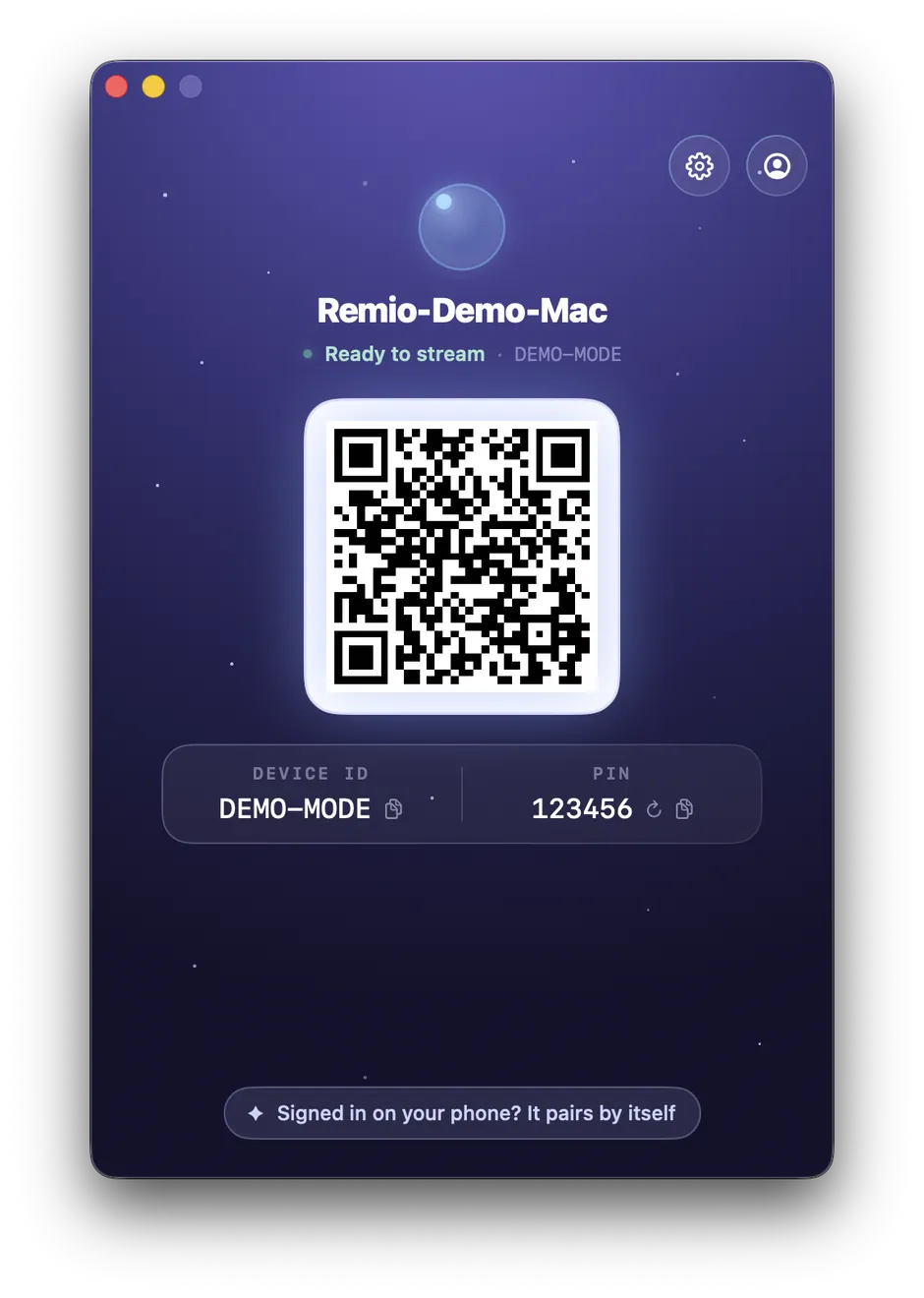
Download the macOS host from the Remio download page. It is a signed and notarized Apple Developer ID build — macOS Gatekeeper accepts it without a right-click workaround. Drag to Applications, launch, grant Screen Recording permission once when prompted, and the host is running. About 80 MB on disk, less than two seconds to first launch.
Step 02 · Install Remio on your iPad
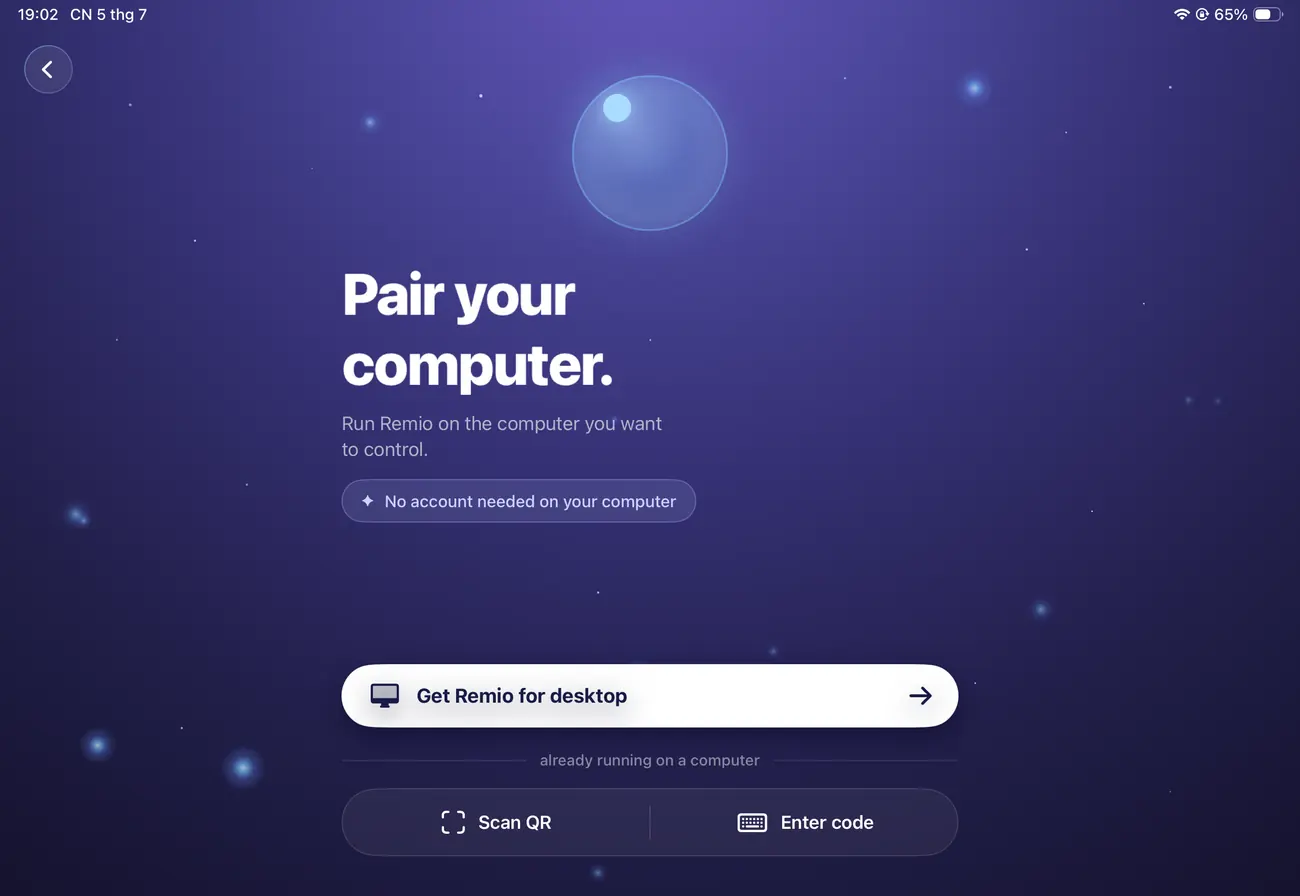
Open the App Store on your iPad, search for “Remio,” install. The iPad client is a universal binary — the same app runs on iPhone, iPad, and iPad Pro — and weighs about 45 MB. Launch it; the app opens to a pairing screen with a number pad and a QR scanner.
Step 03 · Scan the QR or type the 4-digit PIN
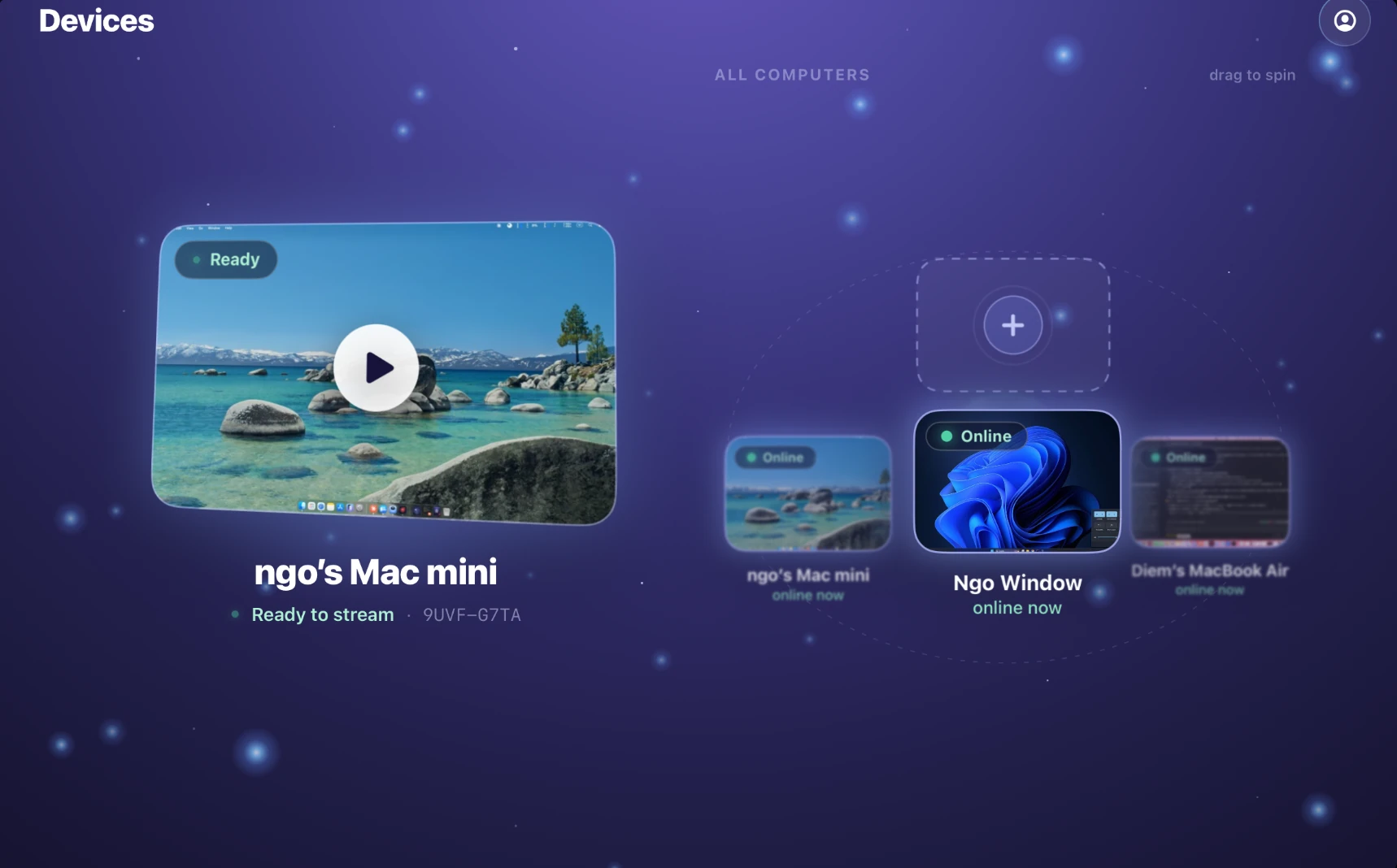
The Mac host shows a QR code and a 4-digit PIN. Point your iPad camera at the QR code — or just type the PIN. The two devices exchange one-time encryption keys with forward secrecy and pair instantly. From the iPad you tap your Mac in the device list, and the desktop appears.
No account, no cloud relay
Remio never asks for an email, a password, or a profile. The PIN brokers the handshake; after that, the stream goes directly between the iPad and the Mac on your network. If a direct path is blocked, Remio falls back to an encrypted relay that only sees opaque packets — but on the same Wi-Fi, the relay is never touched.
Average measured setup · 27 seconds
From the moment you open the App Store on the iPad to the first frame of your Mac desktop appearing on the iPad screen: 27 seconds in our typical measurement. Subsequent reconnections take about a second — the devices remember each other.
Latency the M-series deserves

Latency that respects the M-series chip

Apple builds the iPad and Mac with hardware decoders, ProMotion displays, and a unified memory architecture that can move pixels around at extraordinary speed. A remote desktop app that ignores all of that — software decode in a browser tab, generic codec settings, 30 fps cap — wastes a Pro Display sitting in your hand. Remio doesn’t.

01
Sub-5 ms on the same network

Glass-to-glass under 20 ms, input-to-pixel under 5 ms on LAN

When the iPad and Mac are on the same Wi-Fi, the round-trip from your finger touching the iPad screen to the cursor moving on the Mac is typically under 5 ms. Full glass-to-glass — the time from the Mac screen updating to the iPad screen updating — sits under 20 ms in normal sessions. That is faster than the latency of many wired USB peripherals.

The number comes from a stack with zero buffering: each frame is captured, encoded, transmitted, decoded, and presented immediately. Lost packets request a new keyframe instead of being retransmitted — old frames have no value in a remote desktop session. Every pixel you see is the latest pixel.

02
120 Hz on iPad Pro

60 Hz on standard iPad, 120 Hz on ProMotion iPad Pro

If you’re on a regular iPad or iPad Air, Remio targets a clean 60 fps stream — matching the iPad’s 60 Hz refresh. On iPad Pro with ProMotion, the stream runs up to the panel’s 120 Hz refresh when the Mac source can supply it. Scrolling, dragging, drawing — everything that benefits from higher frame rates feels noticeably smoother on the Pro.

03
Hardware decode on A-series

HEVC hardware decode — no transcoding, no software fallback

Every iPad since 2017 has a dedicated HEVC hardware decoder on the A-series and M-series chips. Remio uses VideoToolbox to feed encoded video straight to that decoder — no software fallback path, no CPU-based decoder eating battery. The decode happens in microseconds, with negligible thermal load. A four-hour Remio session on iPad Pro typically uses around 8% to 12% of the battery.

On the Mac side, ScreenCaptureKit and the AMD/Apple hardware encoder capture and encode the desktop at 4K 60 fps with single-digit-millisecond encoding overhead. Nothing is transcoded between formats. The pixel that left the Mac is the same encoded pixel that arrives on the iPad.

Real workflows, not demos

What you can actually do

The interesting question is not whether you can see your Mac on your iPad — many apps do that. The interesting question is whether the apps you actually use every day still feel right when the input is coming from across the room. Here is what works.

Code in Xcode from the couch
Open Xcode on the host Mac, run a build, attach the debugger to a connected iPhone — all from your iPad in the next room. The iPad’s Magic Keyboard reaches the Mac as a native keyboard, every shortcut works (⌘B, ⌘R, ⌘.). Console output streams back in real time. The compile happens on the Mac’s M-chip, the lap-warmth happens on your couch.
Paint in Procreate on the host Mac
Procreate isn’t on Mac — but Affinity Photo, Photoshop, and Fresco all are, and they all read Apple Pencil pressure and tilt through Remio as a native tablet device. You paint on the iPad, the brush stroke happens on the Mac, you get full undo history and your Mac’s plugin library. The cursor on the Mac follows your pencil tip with sub-frame accuracy.
Edit in Final Cut Pro
Final Cut Pro is the kind of app that pushes a remote desktop hard — high-resolution timeline scrubbing, magnetic timeline drags, J/K/L keyboard scrubbing, audio waveforms responding to the playhead. All of it works through Remio because the input path is native and the video stream is 4K HEVC. You can color-grade on the iPad with the Apple Pencil as a Tangent wheel substitute.
Run Photoshop with full Pencil pressure
Photoshop on the Mac receives Apple Pencil events as a tablet device — full pressure curve, tilt, and azimuth all map to Photoshop’s brush dynamics. Shape Dynamics, Transfer, Brush Tip Shape all respond as if a Wacom were plugged in. Even Photoshop’s right-click context menus work with a two-finger tap on the iPad screen.
Control Logic Pro live
Logic Pro on the Mac responds to the iPad’s touch input for transport (play, stop, record), to the trackpad for fine-grained automation curves, and to the Magic Keyboard for shortcut-heavy editing. The audio routes back to the iPad in sync so you can monitor what you’re mixing — AirPods on the iPad, mix on the Mac, no latency drift between the audio you hear and the meters you see.
When iPad becomes a screen instead

When the iPad becomes a second screen instead

Sometimes you don’t want to remote into the Mac — you want the iPad to extend the Mac’s desktop as an extra display, the way Sidecar does. Remio supports that use case too, with a few advantages: works over any network (not just same-iCloud), works with any Mac (not just the one your Apple ID is signed into), and works with older iPads that Sidecar doesn’t list as supported.

Read the dedicated guide — use the iPad as a second monitor for the Mac — for the setup steps, display arrangement options, and how Remio handles drag-between-screens for app windows.

Common questions

Common questions about iPad to Mac

Five questions people ask before they install. Honest answers below.

No. Pairing uses a 4-digit PIN over the local network. No Apple ID, no iCloud, no Remio account. Open Remio on the Mac, glance at the PIN on screen, type it into the iPad app once. The two devices remember each other after that — reconnections are instant on subsequent launches.
Yes. Pencil events forward to the host Mac as native tablet input with full pressure, tilt, and azimuth. Procreate, Photoshop, Affinity all receive 1:1 pen data. The brush dynamics, shape dynamics, and tilt-aware brush tips all behave exactly as they would with a Wacom or Cintiq plugged into the Mac directly.
Yes. Magic Keyboard, Smart Keyboard Folio, and trackpad input forward as native Mac keyboard/mouse events. Modifier keys, function row, and gestures map cleanly — ⌘Tab switches apps on the Mac, ⌘Space launches Spotlight, the function row controls brightness and volume on the Mac just like it would on a Magic Keyboard wired in directly.
Sidecar makes the iPad a secondary display of a nearby Mac. Remio streams the full Mac desktop to the iPad as the primary view — works over Wi-Fi or cellular, supports older iPads, and the Mac doesn’t need to be the same one signed into iCloud. You can also use Remio Sidecar-style as a second screen; see the dedicated second-monitor guide for that workflow.
Audio routes back to the iPad in sync with video. System sounds, music, video calls all stream to the iPad speakers or AirPods. Lip-sync is maintained at the frame level so a video call on the Mac sounds natural on the iPad — no echo, no delay between the speaker’s mouth and their voice.
Free during launch · no account · no card

Bring your Mac to your iPad in thirty seconds.

Install the Remio host on your Mac, install the Remio client on your iPad, type a 4-digit PIN once. Your full Mac desktop is on the iPad with sub-5 ms latency on the same Wi-Fi, Apple Pencil pass-through, trackpad inertia preserved, and audio in sync. Free, native, encrypted end-to-end.

macOS host, iPadOS client. Average measured setup is 27 seconds. No iCloud, no Apple ID, no Remio account.