Stored at pairing time
Pairing with the code records the host's MAC address alongside its device ID and encryption key. That MAC is the destination for every future magic packet — you never type it or copy it from a router page.
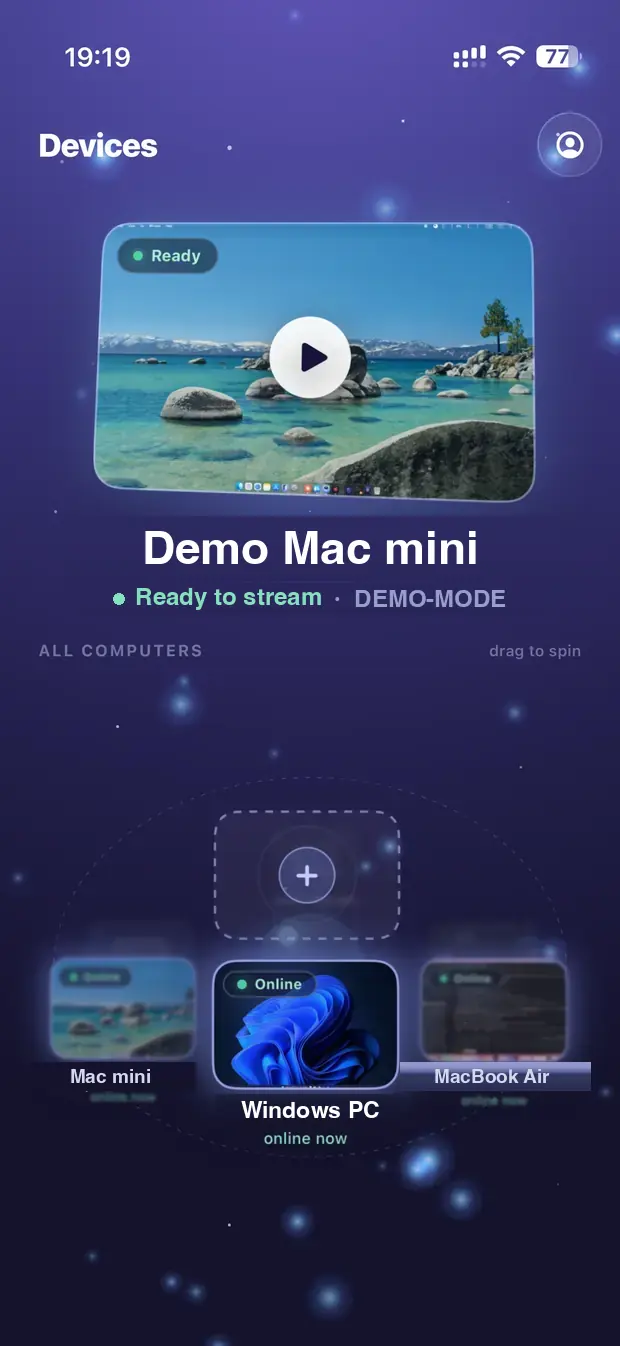
Remio has native Wake-on-LAN built in. Your Mac, PC, or Linux machine can sleep all night and still be one tap away — open Remio on your phone, the client sends a magic packet, the host wakes, and the stream starts. No separate app, no router setup, no port forwarding.
Other remote desktop apps expect you to install a separate WoL utility, look up your host's MAC address by hand, and remember to fire it before you connect. Remio captures the MAC once at pairing, then sends the packet automatically the moment you reconnect — over the same encrypted channel as the session itself.
When you tap a sleeping host's tile, the client checks whether it's reachable; if not, it sends the magic packet, waits for the host to come back on the network, then opens the streaming session. From your side it looks like a single connect — about 8 to 15 seconds on a modern Mac, 15 to 30 on a Windows PC depending on BIOS post-time.
No extra button. No separate wake step.

Three moving parts, all handled inside Remio — no always-on listener on your home network required.
Pairing with the code records the host's MAC address alongside its device ID and encryption key. That MAC is the destination for every future magic packet — you never type it or copy it from a router page.
The WoL magic packet is a UDP broadcast that reaches the host's network interface while it's in low-power mode. Remio sends it directly from the client — any paired client on the LAN can wake the host, not just the one that paired originally.
The client waits for the host to come back online, then opens the session automatically. On a Mac that's 8 to 15 seconds from tap to first frame; on Windows, 15 to 30 depending on the BIOS. Reconnects to an already-awake host are sub-second.
Every wake-up rides the same encryption keys that secure the streaming session. Remio never relays magic packets through the cloud, so no always-on listener sits on your home network.
Two settings on the host, one pairing on the client, done. After this, every Remio client that pairs with the host inherits the WoL ability automatically.
Open System Settings → Energy (or Battery → Options on a laptop). Turn on “Wake for network access.” On laptops this requires AC power — the network card needs to stay alive while the machine sleeps. Apple Silicon Macs support Wi-Fi wake out of the box; Intel Macs work over Wi-Fi or Ethernet.
Open Device Manager, find your network adapter, right-click → Properties. On the Power Management tab, tick both “Allow this device to wake the computer” and “Only allow a magic packet to wake the computer.” Also check your motherboard BIOS/UEFI for a Wake on LAN or PME Event Wake Up setting and enable it.
Check that your adapter supports it with sudo ethtool eth0 — look for Supports Wake-on: g. Turn it on with sudo ethtool -s eth0 wol g, and make it survive a reboot by setting wake-on-lan = magic on the connection in NetworkManager (nmcli c modify <name> 802-3-ethernet.wake-on-lan magic). Enable Wake on LAN or PME Event Wake Up in your BIOS/UEFI too.
Launch the Remio host. Launch the Remio client on your iPhone, iPad, Mac, Android, or Windows device. Pair with the six-digit code. During this exchange the client records the host's MAC address — that one record is everything the client needs to wake the machine later.
Close the lid, lock the screen, or let the host fall asleep on its own schedule. The Remio host keeps its pairing keys ready through sleep cycles — the moment a magic packet arrives, the OS wakes the machine, Remio Host comes back online, and the listening daemon accepts an incoming session.
Open Remio on any paired client, tap the host's tile. Remio sends the magic packet, waits for the host to respond, and starts the stream. Total time from tap to first frame is 8 to 15 seconds on a Mac, 15 to 30 seconds on Windows. Subsequent reconnects while the host is already awake are sub-second.
There are dozens of standalone WoL utilities. They all send the same magic packet Remio sends. The difference is everything around it.
You install a second app. You look up the host's MAC address from your router or System Settings. You copy it in, name the entry, and remember to open the WoL app first, send the packet, wait, then switch to your remote desktop app and connect. Two apps in your workflow, two places to lose the configuration — and the WoL app often has no idea whether its packet actually woke anything.
One app. The MAC address is captured the moment you pair. The wake-up is part of the connect flow. The client knows whether the magic packet worked because it's also the thing waiting for the host to come back online — no false-positive “packet sent” while the machine stays asleep. And the same encryption keys that secure the session bind the wake-up to your paired devices.
Five questions people ask before they rely on Wake-on-LAN as part of a daily workflow. Honest answers below.

Your Mac, PC, or Linux machine can sleep all night, all weekend, all vacation — and still be one tap away from the next session. Install the host once, pair the clients once, and the magic packets take care of themselves.