Do I need an Apple ID or iCloud?
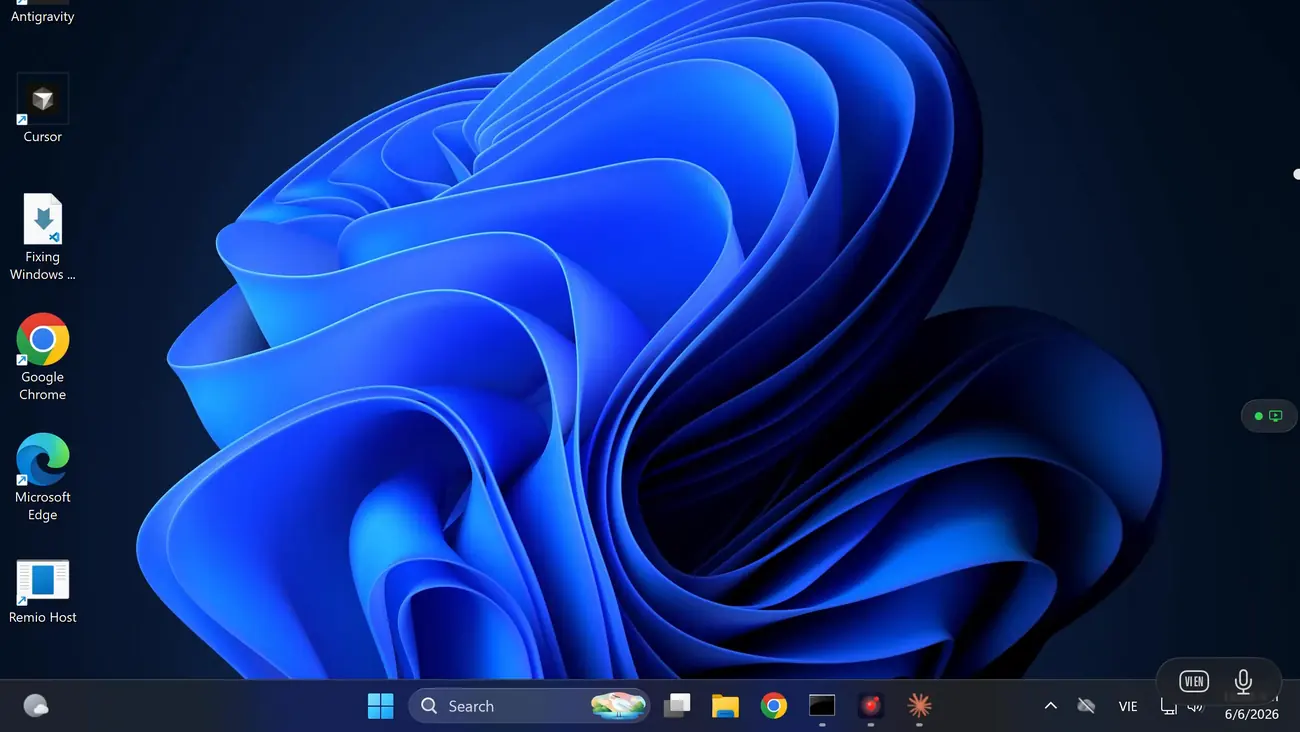
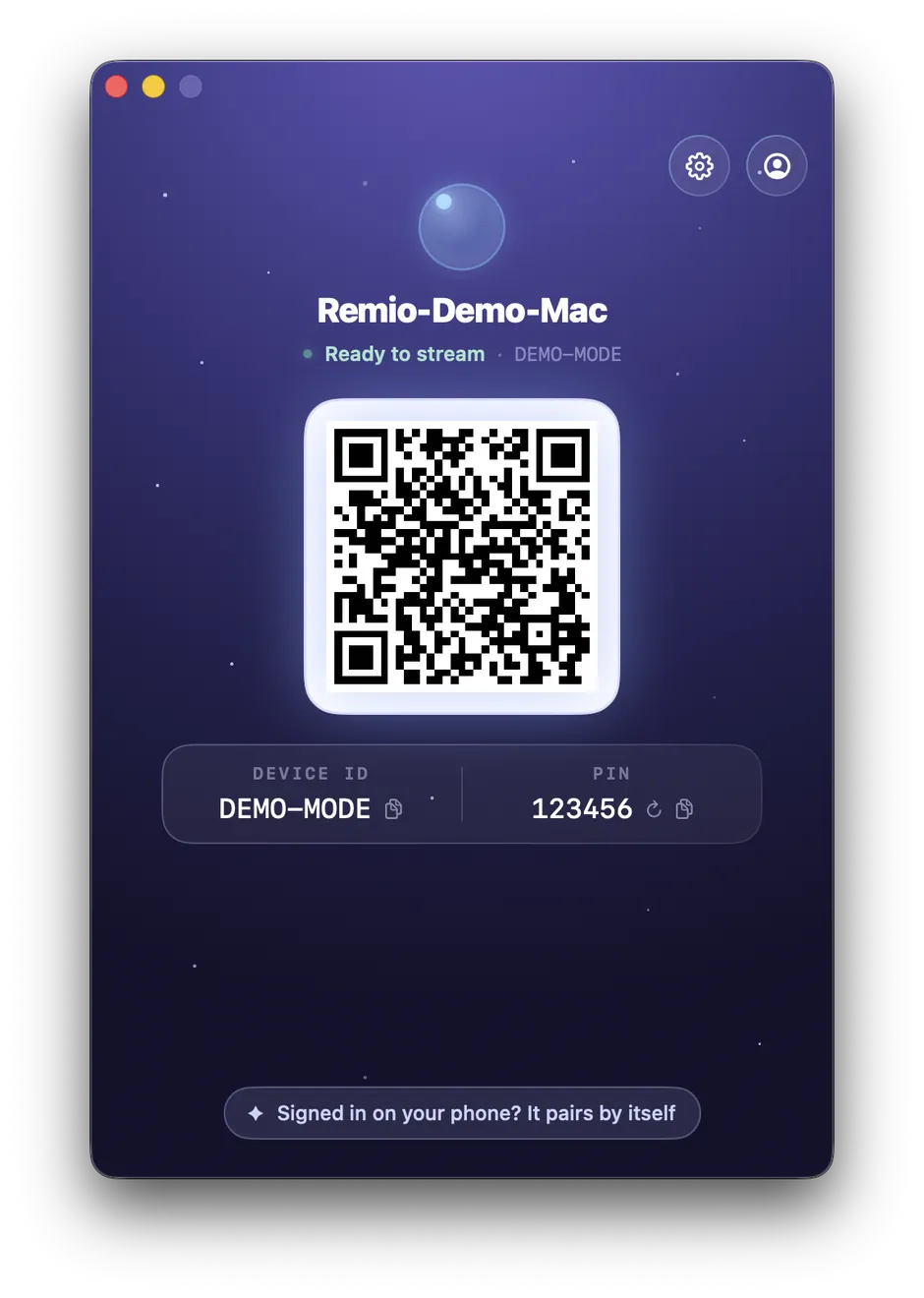
No. Remio does not use Apple ID, iCloud, or any identity service — and there is no Remio account to sign up for either. Pairing is purely local: the Mac shows a six-digit code, you type it into the Windows client, and you can rotate the code anytime from the host. No email, password, or profile is created at any point.
Does it work outside my home network?
Yes. Remio connects your Windows PC and your Mac peer-to-peer with end-to-end encryption — your screen never touches our servers — and needs no port forwarding, no VPN, and no router configuration. If a direct path is not available, the session falls back to an encrypted relay that only ever sees ciphertext. Same-region sessions over the internet typically run low double-digit milliseconds, measured internally.
Can I use my PC keyboard’s shortcuts on the Mac?
Yes. macOS uses Cmd as the primary modifier where Windows uses Ctrl, and Remio remaps them automatically by default — Ctrl+C on your PC keyboard fires Cmd+C on the Mac, so copy, paste, undo, and save land the way your hands expect. Hardware keyboards forward every key including the F-row and modifiers, and you can turn the mapping off in Preferences → Keyboard → Auto Modifier Remap if you prefer raw keys.
Is the Windows client really free?
Yes. Remio is completely free — every feature, on every platform. The Windows client, the Mac host, 4K streaming, audio, clipboard sync, file transfer, monitor switching, unattended access, and end-to-end encryption are all included. There is no account and nothing held back.
What macOS and Windows versions do I need?
The Mac you are reaching needs macOS 15 Sequoia or later to run Remio Host — Apple Silicon is strongly preferred for hardware HEVC at 4K, and Intel Macs work for 1080p sessions. The Windows side runs the Remio client on Windows 10 1809 (build 17763) or later and on Windows 11, on 64-bit x64 PCs.